Counts by Holding Zone
When counting stock by holding zone, the overall process is the same as a standard stock count. However, each zone is counted individually, and the closing counts for each zone are entered separately, providing a stock result per zone and for the complete site.
If you wish to have a stock result for the entire site but have a better counting experience use counts by location.
Stock Counts by Holding Zone Topics
Stock Process with Holding Zones
Follow these steps to start a new stock:
-
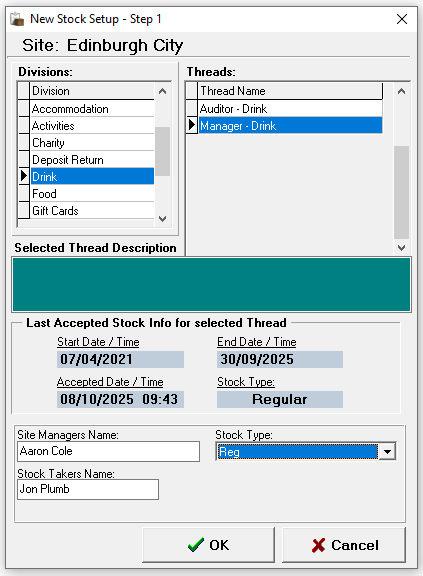
Select the required Product Division
-
Select the required Thread
Depending on the security settings applied to job roles you may only see one stock thread per division -
Enter the Site Managers Name, Stock Takers Name and select the required Stock Type
-
Click OK
-
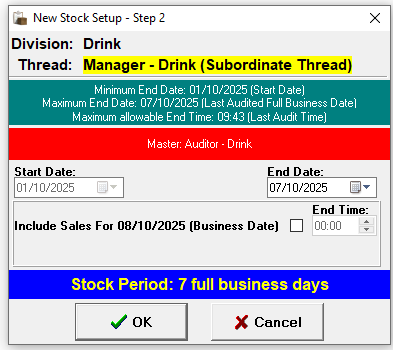
Confirm the End Date
-
The start date will be the closing date of the last stock
-
The end date defaults to yesterday, a part day stock can be included for today by selecting the check box and setting a time
-
-
Click OK
-
Click Yes or No to print the Count Sheets as required
When selecting 'Yes' count sheets will be displayed on screen which can then be printed
-
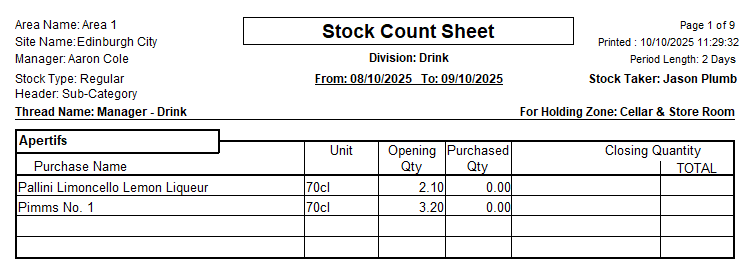
Count sheets are displayed in either Category or Subcategory Order
-
Count sheets may contain additional fields and have large spacing depending on the organisations setup
-
Count sheets will display their holding zone name
-
Click Close and the next set of count sheets will be generated for each holding zone | repeat until all count sheets printed as required
-
-
From the Confirmation prompt select the required option
-
Yes - to proceed to entering the closing stock values
-
No - saves any figures (if already entered) and closes
If 'No' is selected selecting 'Current Stocks' from the main stocks menu will display this stock for selection
-
-
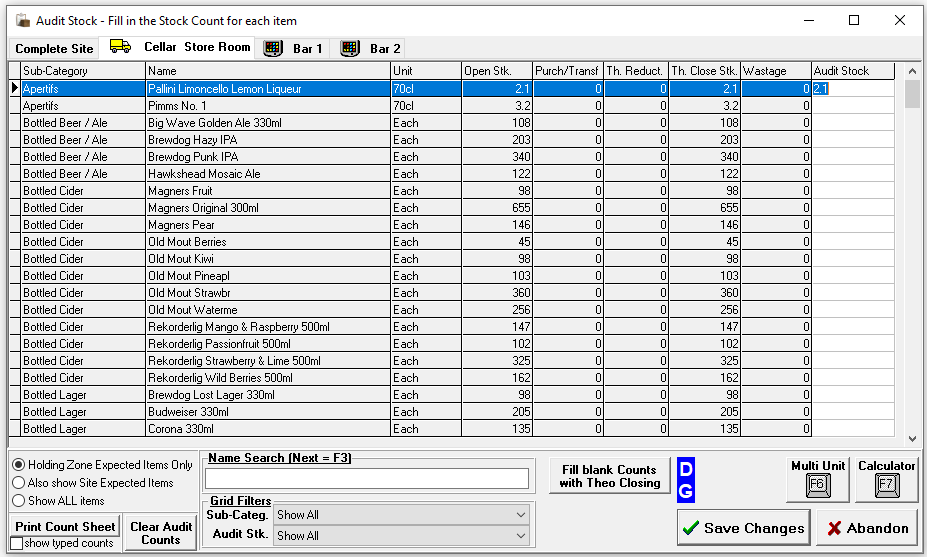
Enter the counted value into the Audit Stock Column
-
The count value should be representative of the Unit column
-
All closing stock values should be entered for each holding zone
-
The Complete Site tab is read only and will calculate the overall total closing stock from each holding zone
-
Two decimal places can be entered
-
-
Complete the remaining processes as per standard stock entry, review and acceptance
-
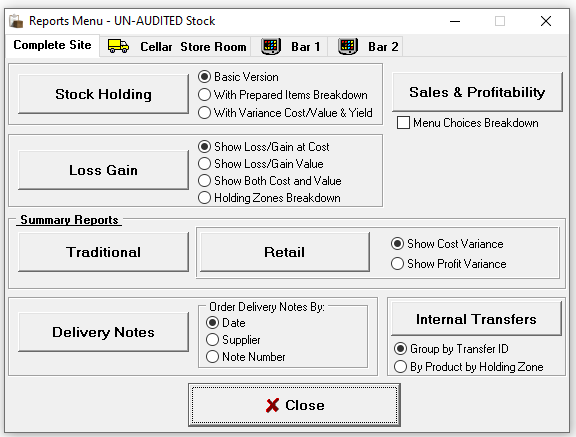
Reports will be available by holding zone or complete site
-
Internal Transfers can be viewed by zone
-
When reviewing the stock results whilst also checking the standard stock options also ensure that the correct transfers were entered
-